The Workspace
JEditor is a single Editor window with a stable layout: feature rail, menus, main surface, and docks. Learning that layout once makes every workspace feel familiar.
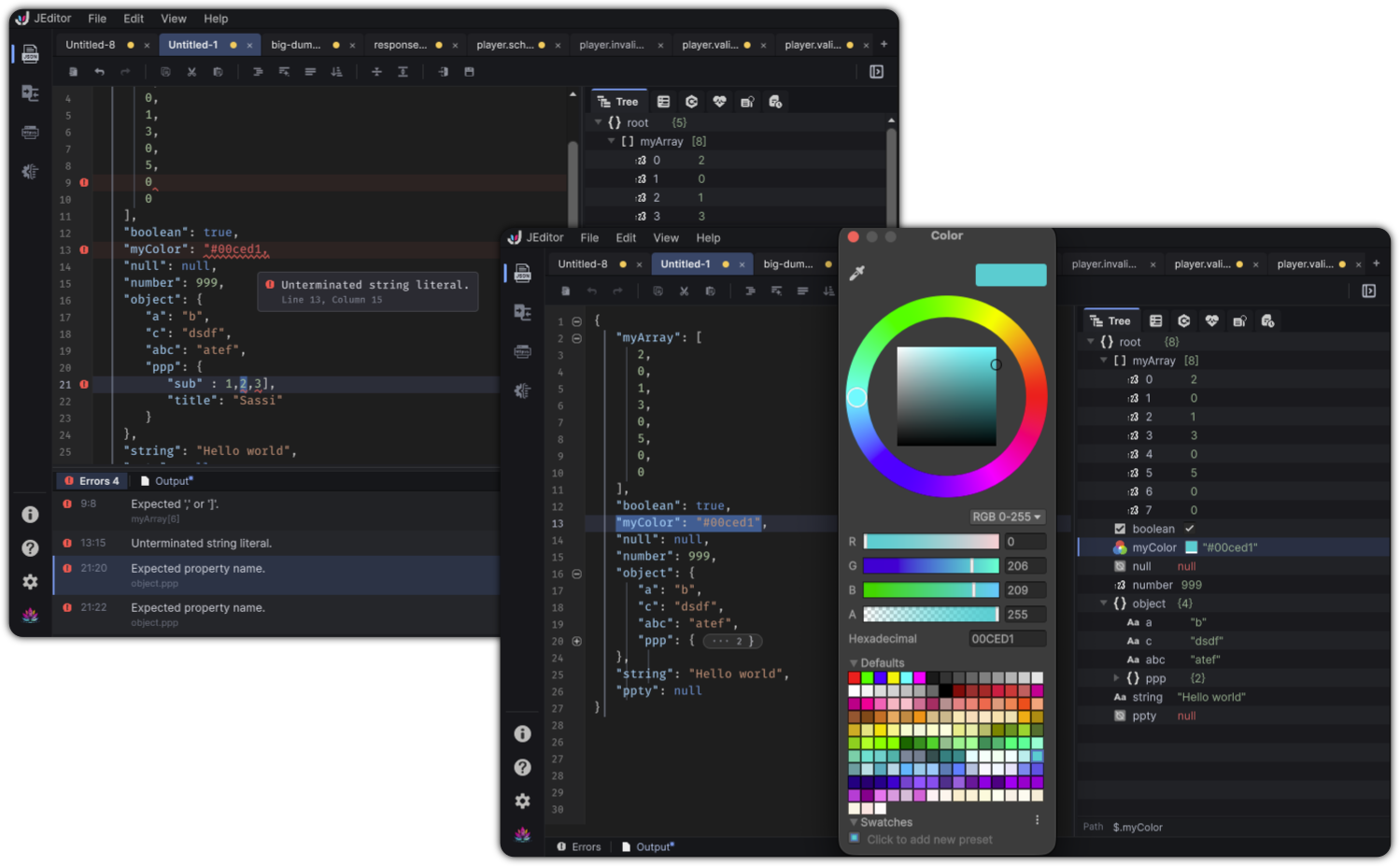
Window anatomy
┌────────┬──────────────────────────────────────────────┐
│ Feature│  Menu bar                                    │
│  rail  ├──────────────────────────────────────────────┤
│        │                                              │
│ Docs   │           Main workspace                     │
│ Compare│           (tabs + editor / panels)           │
│ HTTP   │                              ┌─────────────┐ │
│ Schema │                              │ Right dock  │ │
│        │                              │ Tree … VC   │ │
│ About  │                              └─────────────┘ │
│ Help   ├──────────────────────────────────────────────┤
│ Prefs  │  Bottom dock: Errors · Output                │
│ Roadmap│                                              │
└────────┴──────────────────────────────────────────────┘
The right and bottom docks are most prominent in Documents. Compare, HTTP, and Schema use their own specialized main surfaces.
Left feature rail
| Control | Role |
|---|---|
| Documents | JSON documents, editor, and document tools |
| Compare | Semantic JSON comparison sessions |
| HTTP | Request tabs and response inspection |
| Schema | Schema authoring and validation |
| About | Product overlay |
| Documentation | Opens docs |
| Preferences | JEditor Preferences window |
| DivinityCodes Roadmap | Studio roadmap window (badge when updates exist) |
Selected feature state is shown with a left accent indicator and a brighter icon. Hover brightens and slightly scales the icon without turning the rail into a stack of button chrome.
You can also jump workspaces from JEditor → Go to … in the menu bar.
Documents layout
Documents is the default daily surface.
Tab bar
- Multiple document tabs
- Dirty indicator
- Drag to reorder
- Context actions: Pin Tab / Unpin Tab, Close Tab, close left / right / others
- + creates a new document
Pinned tabs hide the close affordance and refuse casual close through the document manager.
Toolbar
Common actions include Clear, Undo / Redo, clipboard commands, Format JSON, Smart Format, Compact JSON, Sort Keys, fold expand / collapse, Import, Save, and right-panel collapse.
Right dock tools
| Tab | Purpose |
|---|---|
| Tree | Structural navigation and inline edits |
| Inspector | Property-sheet editing for the document |
| Live C# | Generated C# preview |
| Health | Document health score and findings |
| Search | Text search plus Form / LINQ query |
| Version Control | Local edit timeline |
When collapsed, the dock becomes a right-edge rail of tool buttons. Hover expands the hovered button leftward with a highlight and scales the icon. When expanded, tab icons highlight and scale without sliding.
Bottom dock
| Tab | Purpose |
|---|---|
| Errors | JSON syntax diagnostics with jump-to-source |
| Output | Per-document activity log |
Click the active bottom tab again to collapse the dock. An unread indicator can appear on Output when new activity arrives while you are elsewhere.
Layout persistence
JEditor remembers:
- Open document tabs, text, caret, pin state, and file paths
- Right and bottom dock size / expanded state / selected tabs
- Per-document Output logs
- Version Control history
- Compare, HTTP, and Schema workspace session state
JEditor remembers your open tabs, dock sizes, and local history in the Editor. That memory is not part of the content you commit.
Other workspaces at a glance
| Workspace | Main idea |
|---|---|
| Compare | Left / right panes, sync tools, Changes list |
| HTTP | Method, URL, Params / Headers / Body, Response |
| Schema | Schema tabs, nav tree, editor, validation, target JSON |
Each workspace adapts the File, Edit, and View menus to relevant actions.