Documents
Documents is where most JEditor work happens. It is a multi-tab JSON editing surface with a toolbar built for game data, not a generic code editor bolted onto Unity.
When balance tables or config blobs are edited as plain text, small mistakes cascade: broken commas, accidental key renames, unreadable diffs, and models that no longer match samples. Documents gives you a focused editor that understands JSON structure while still letting you work in raw text when that is faster.
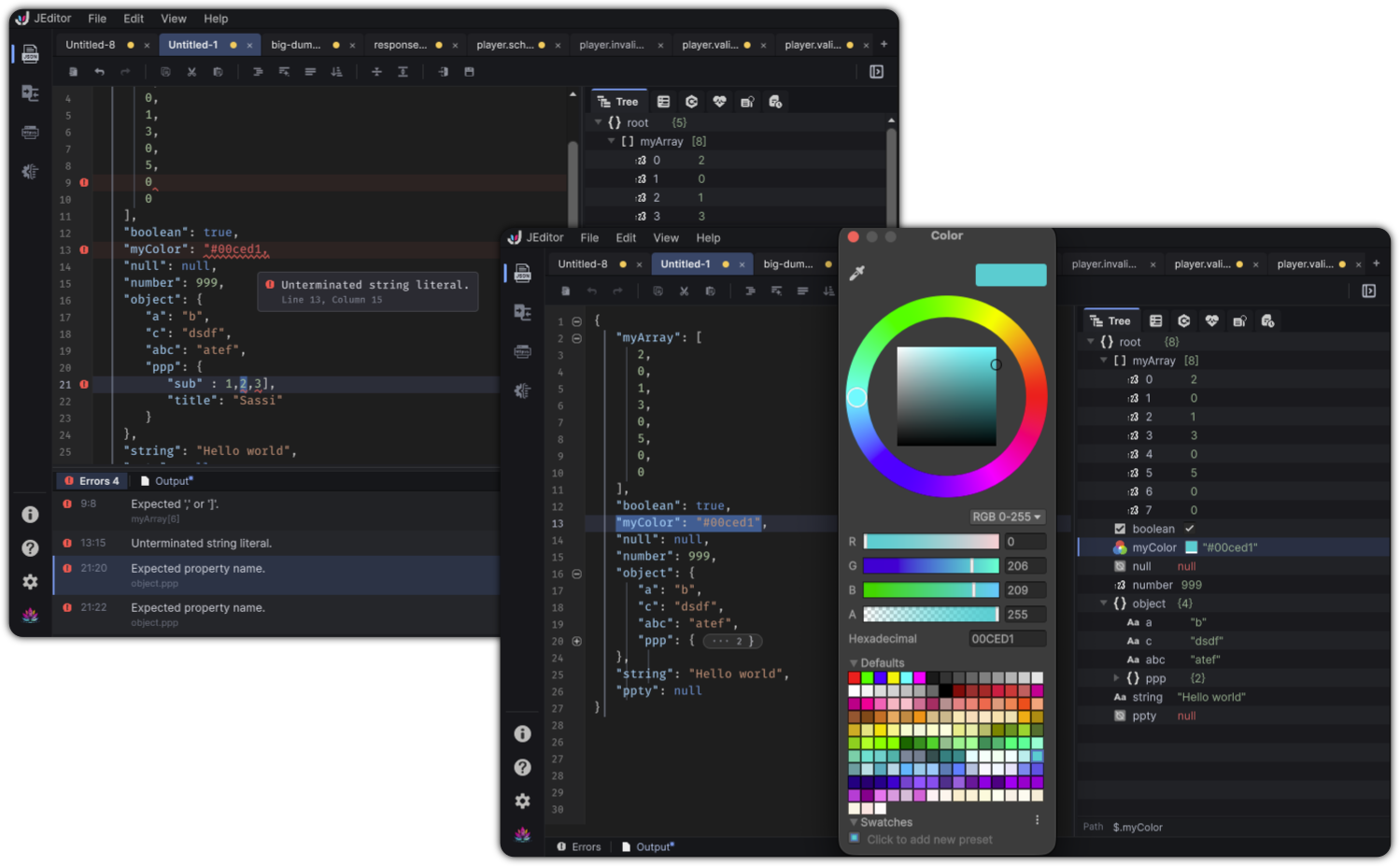
Document management
Create, open, save, close
| Action | How |
|---|---|
| New document | Tab +, or File → New Document |
| Open file | File → Open… or toolbar Import |
| Save | File → Save / toolbar Save |
| Save As | File → Save As… |
| Close | Tab close, or File → Close Document |
Closing a dirty document prompts Save Changes? with Save / Cancel / Don't Save.
Opening a path that is already open focuses the existing tab. Save As will not overwrite a path owned by another open tab.
Tabs
- Dirty state is visible on the tab
- Drag tabs to reorder
- Pin Tab keeps reference documents available
- Close left / right / others cleans the strip quickly
External file changes
If a file-backed document changes on disk, JEditor can prompt File Changed on Disk with Reload / Cancel / Keep Mine when the window regains focus.
Session restore
Open tabs and unsaved text come back after you restart Unity.
The JSON editor experience
The center pane is a purpose-built JSON text editor.
Editing comfort
- Syntax highlighting with configurable palettes
- Line numbers, indent guides, bracket matching
- Auto-closing pairs and smart indent (Preferences)
- Configurable indent size
- Document undo / redo
- Fold markers for objects and arrays
Formatting tools
| Tool | Use it when |
|---|---|
| Format JSON | You want a full pretty-print |
| Smart Format | You want readable nesting without over-expanding tiny structures |
| Compact JSON | You need a single dense payload |
| Sort Keys | Ascending or descending key order helps review or diff |
Formatting is also available from Edit.
Folding
- Collapse or expand individual blocks from the gutter
- Collapse all objects and arrays / Expand all folded blocks from the toolbar
- Matching View menu commands
Folds are session-only
Fold state is working-session state. It is not restored from the workspace snapshot the way text and caret are.
Find
There is no separate in-buffer find bar. Find… (Cmd+F / Ctrl+F by default) opens the right dock Search tab and focuses the find field. See Search & Query.
Diagnostics while typing
Invalid JSON remains editable. Diagnostics appear as editor feedback and in the bottom Errors dock. The Tree may keep showing the last valid model while you repair syntax.
Practical example
Suppose you receive this compact remote-config blob:
{"season":{"id":"s3","endsAt":"2026-10-01"},"shop":[{"sku":"gems_50","price":4.99},{"sku":"gems_300","price":19.99}],"features":{"newHud":true,"pitySystem":false}}
A productive Documents pass:
- Smart Format or Format JSON
- Tree-select
shopand confirm structure - Search for
pitySystem - Toggle the flag in Inspector or text
- Save beside your content pipeline files
Empty state
With no open documents, Documents shows an empty state with actions to create or Open JSON. Start there, then grow into the docks as needed.