Tree & Inspector
Tree and Inspector turn a JSON document into something you can navigate and edit like structured game data, while the text editor remains the source of truth.
Large JSON files punish pure text editing. Finding the third inventory slot, renaming a nested key safely, or adding a typed property is faster when you can see hierarchy and edit fields without hunting braces.
Tree and Inspector are complementary:
| Tool | Best for |
|---|---|
| Tree | Orientation, expand / collapse, path awareness, quick structural edits |
| Inspector | Unity-style property sheet editing with typed fields |
Both sync with the Documents editor and can log mutations into Version Control and Output.
Tree View
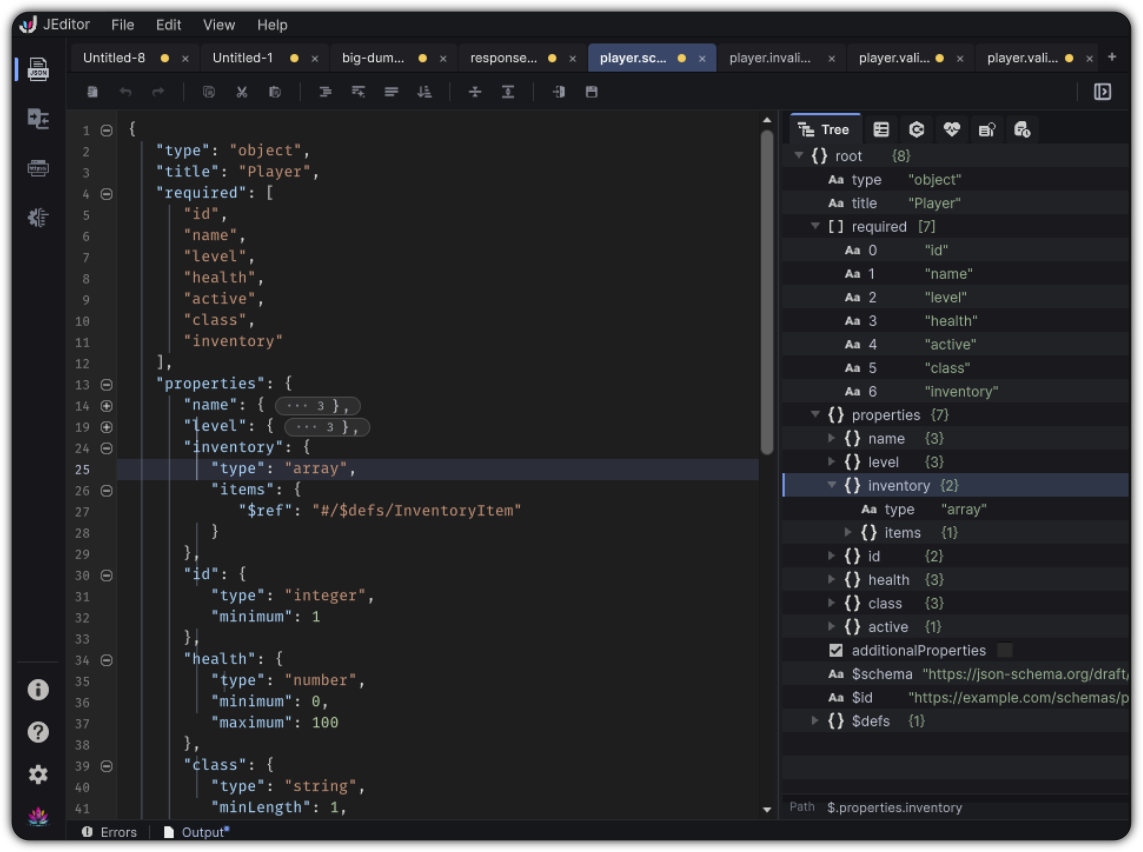
Open the right dock Tree tab.
Browse and select
- Expand and collapse objects and arrays
- Select a node to update the path field at the bottom (JSONPath-style, for example
$or$.inventory[1].id) - With Auto Reveal Tree ↔ Editor enabled, selection reveals the matching source range in the editor
- Activate a row (double-click / activate) to reveal source even when auto-reveal habits differ
Inline editing
Depending on the node, Tree supports inline edits for:
- Property names
- Values
- Booleans
- Colors
Structural edits are available from the context menu.
Context menu
| Action | Effect |
|---|---|
| Add Property | Adds a property to an object |
| Add Element | Adds an element to an array |
| Delete | Removes the selected node |
| Copy JSON Path | Copies the path for Search / LINQ / sharing |
| Copy Value / Copy JSON | Clipboard helpers |
| Reveal in Editor | Jumps to source (useful if auto-reveal is off) |
| Expand / Collapse / children variants | Hierarchy control |
Empty and error states
- Empty documents show that the tree is unavailable
- Documents with syntax errors may keep the last valid tree while you repair the text
Inspector

Open the right dock Inspector tab.
Inspector presents a property-sheet experience inspired by Unity's Inspector workflow.
What you see
- Type metadata in the header (for example Object · N properties, Array · N elements, String, Color)
- Editable rows for the document structure
- Expansion that follows the current Tree / selection path
Empty states explain when nothing is selected or no document is open.
Editing and structure
- Edit strings, numbers, booleans, and specialized values such as colors
- Context menu support for Add Property (String, Number, Boolean, Null, Object, Array), Add Element, Delete, copy actions, and Reveal in Editor
- Large arrays stay comfortable to scroll
- Very large documents may show a note that sections should be expanded as needed
Mutations are attributed to Inspector in Version Control history.
Recommended loop
- Use Tree to find the region that matters
- Confirm the path
- Edit either inline in Tree, in Inspector fields, or in the text when raw control is better
- Let Search / Health / Compare take over once the structure is correct
Example: balance an inventory stack.
{
  "inventory": [
    { "id": "sword_iron", "qty": 1, "rarity": "common" },
    { "id": "potion_hp", "qty": 4, "rarity": "common" }
  ]
}
Select $.inventory[1].qty in Tree, bump the value in Inspector, then Search for other potion_hp entries if the document is larger.
Preference that changes the feel
Preferences → Editor → Auto Reveal Tree ↔ Editor
Keep it on for a linked browsing experience. Turn it off if you want Tree selection without constantly moving the editor caret.