Version Control
Version Control in JEditor is a local edit timeline for document changes inside the tool. It is not Git integration. It is a fast recovery and review surface for exploratory editing.
JSON experimentation is messy by nature: temporary renames, formatting passes, Inspector tweaks, restored drafts. A local timeline lets you preview where you were, compare against the current document, and restore a version without digging through external history for every intermediate edit.
Use Git (or your team VCS) for durable project history. Use JEditor Version Control for in-session confidence.
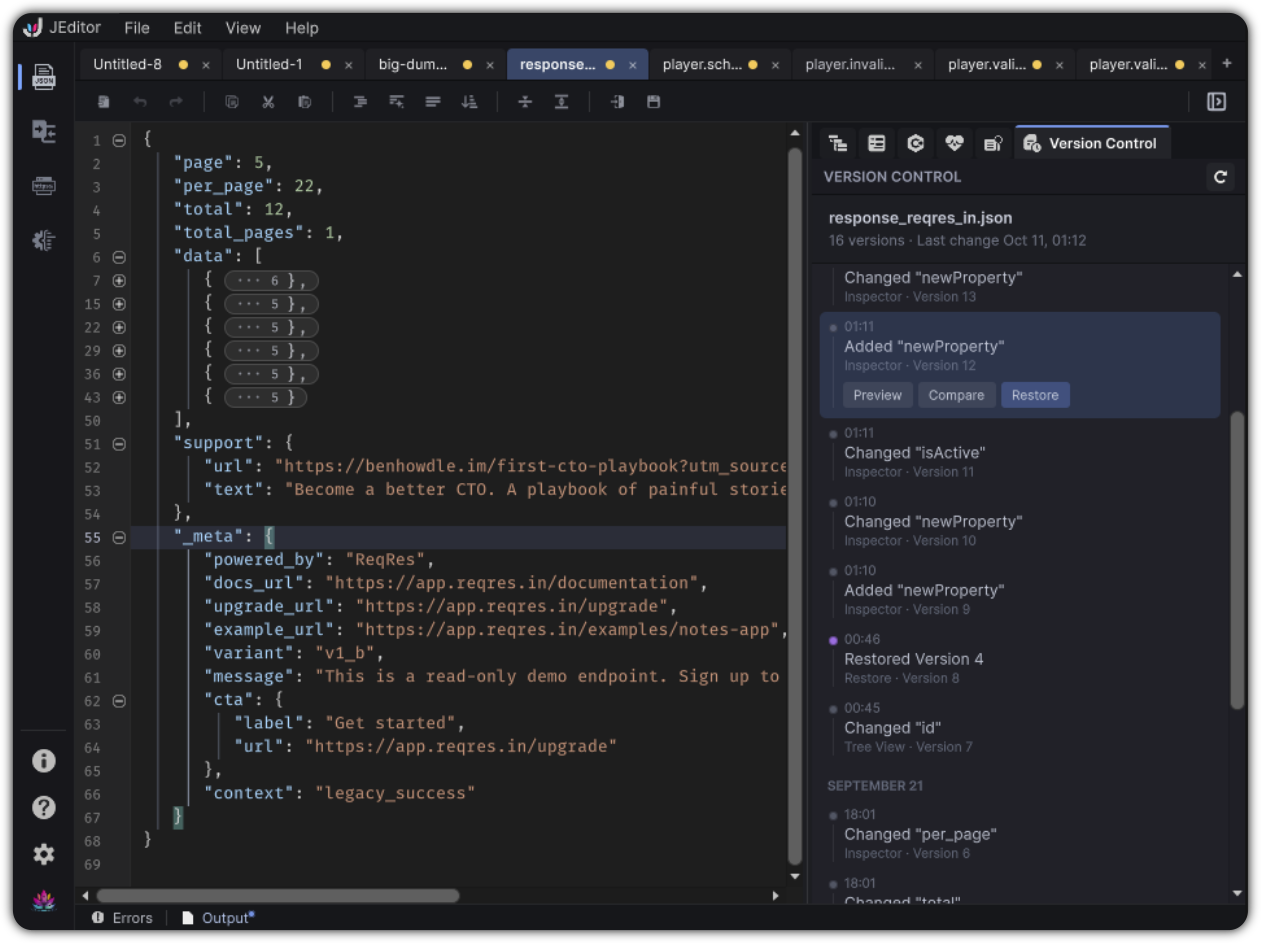
Open Version Control
Right dock → Version Control
Toolbar:
- VERSION CONTROL label
- Refresh versions
Timeline anatomy
Entries typically show:
| Element | Meaning |
|---|---|
| Date groups | When changes happened |
| Time + summary | What changed at a glance |
| Source label | Where the mutation came from |
| Version N | Stable version identity |
| CURRENT | The live document state marker |
| SAVED | Versions associated with save points |
Common sources
Edits can be attributed to sources such as:
- Editor
- Tree View
- Inspector
- Format
- Restore
- Save
and related document operations.
JEditor keeps this in the Editor, outside your Assets folder.
Actions
Select a non-current version to unlock actions:
| Action | Result |
|---|---|
| Preview | Opens a read-only historical overlay |
| Compare | Sends historical vs current into the Compare workspace |
| Restore | Restores that version into the document after confirmation |
Context menu mirrors Preview, Compare with Current, and Restore This Version.
Preview overlay
Preview opens a full-workspace style overlay:
- Historical version is read only
- Actions include Compare with Current and Restore
Restore confirmation
Restore asks for confirmation (for example Restore Version N?). Restoring does not erase the timeline. History continues so you can recover again if needed.
Recommended loop
- Edit freely in Documents / Tree / Inspector
- When something feels wrong, open Version Control
- Preview a candidate version
- Compare if you need a semantic diff against current
- Restore only when you are sure
This pairs especially well with Compare.