Search & Query
Search lives in the Documents right dock. It covers three complementary ways to find what matters in a JSON document: instant text search, a visual query builder, and C# LINQ.
Scrolling a 5,000-line config is not a workflow. Search and Query let you ask questions of the document:
- Where is this SKU?
- Which enemies have
elitetrue andlevelabove 20? - Give me every email-like field under objects.
Results jump into the editor so discovery immediately becomes editing.
Open Search
- Right dock → Search
- Edit → Find… (default Cmd+F / Ctrl+F)
- Edit → Find in Query… (default Cmd+Shift+F / Ctrl+Shift+F)
Shortcuts are configurable in Preferences → Search.
The panel has two top-level modes:
| Mode | Purpose |
|---|---|
| Search | Fast text find across properties and values |
| Query | Structured filtering via Form or C# LINQ |
Search (text)
Type into the find field. Matches show up under RESULTS with a hit count.
| Control | Behavior |
|---|---|
| Result list | Click a hit to reveal it in the editor |
| ▲ / ▼ | Previous / next result |
| Enter / Shift+Enter | Cycle results while the field is focused |
Search is case-insensitive over properties and values. Max results and navigation wrap behavior are controlled in Preferences.
Literal first, structure second
Use text Search for literal hunting. Switch to Query when the question is about structure or conditions.
Query → Form
Form is the visual query builder.
- Open Query, choose Form
- Add conditions with + Add condition
- Choose Property, Operator, and value inputs
- Combine conditions with AND / OR
- Click Run Query
Operators adapt to the selected property's type (equality, contains, array counts, existence, and related checks).
After a successful run, the panel can compact into a summary with an Edit action if Compact editor after successful run is enabled in Preferences.
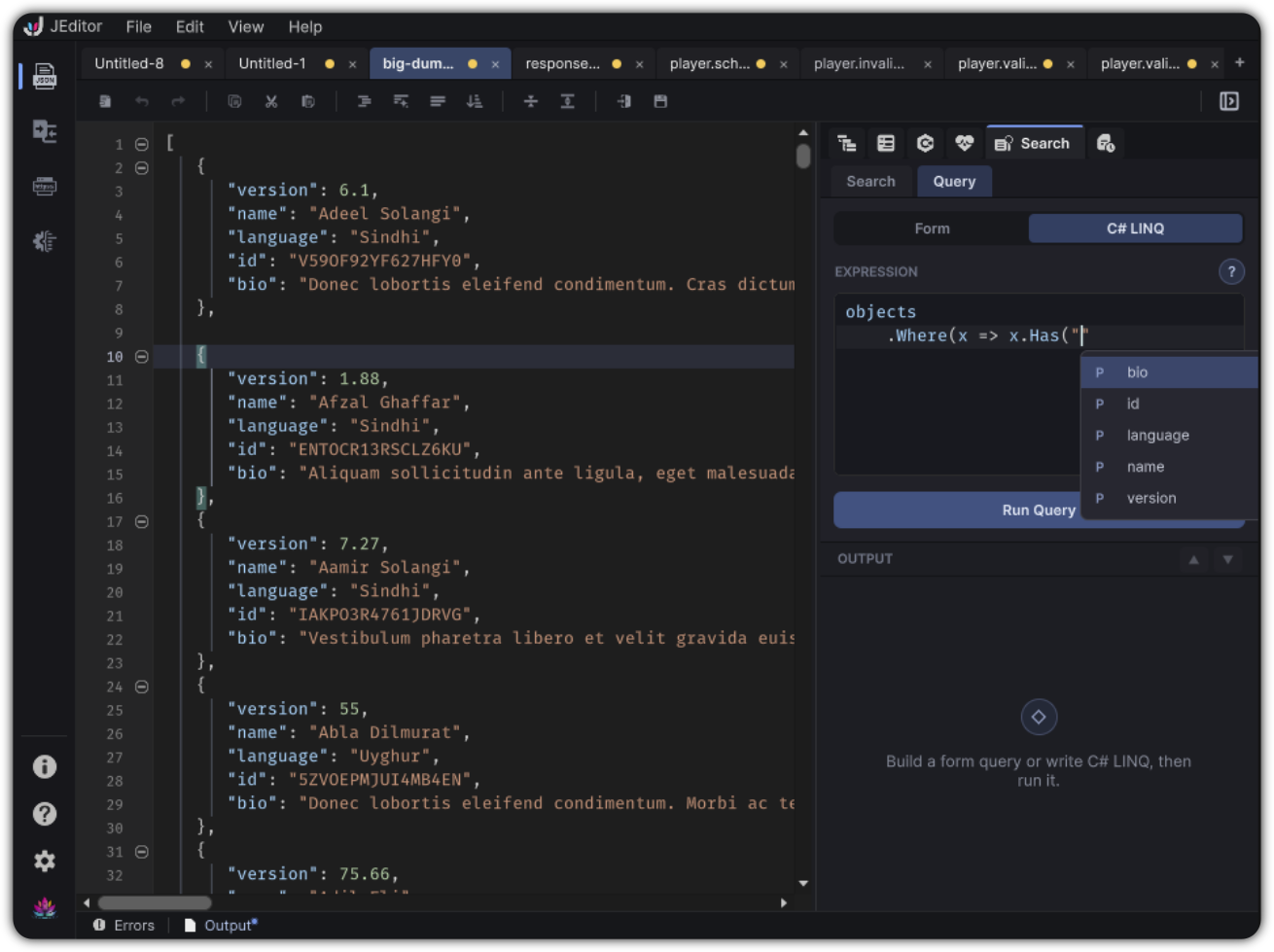
Query → C# LINQ
C# LINQ is for developers who want expressive filters with familiar C# syntax.
The expression editor includes:
- Syntax highlighting
- Completion for LINQ methods and properties
- Auto-pairing comfort while typing
- A ? help overlay with guided examples
The cast
Every query starts from one of these roots:
| Root | Meaning |
|---|---|
objects |
Every JSON object in the document |
arrays |
Every JSON array |
values |
Strings, numbers, booleans, null |
nodes |
Everything |
Examples
Filter objects with a score:
Combine conditions:
Project and limit:
Default starter template:
Supported LINQ-style methods in completion include Where, Select, SelectMany, OrderBy, OrderByDescending, Take, Skip, First, FirstOrDefault, Any, and Count.
Click Run Query to execute. If the document changes after a successful run, the UI can indicate that results are stale until you run again.
Valid JSON required
LINQ queries require valid JSON. Fix syntax errors first, then run.
Practical game-data scenario
Given enemies config:
{
  "enemies": [
    { "id": "slime", "level": 2, "elite": false, "zone": "forest" },
    { "id": "wolf", "level": 8, "elite": false, "zone": "forest" },
    { "id": "lich", "level": 25, "elite": true, "zone": "crypt" }
  ]
}
- Text Search:
lich - Form Query:
eliteequals true - LINQ:
Preferences that affect Search
| Setting | Effect |
|---|---|
| Debounce | How quickly live Search updates |
| Max results | Caps listed hits |
| Auto-select first | Focuses the first hit automatically |
| Wrap navigation | Cycles past the ends of the list |
| Query auto-compact | Collapses the editor after successful Query runs |
| Find / Find in Query shortcuts | Remappable hotkeys |
See Preferences.