Compare
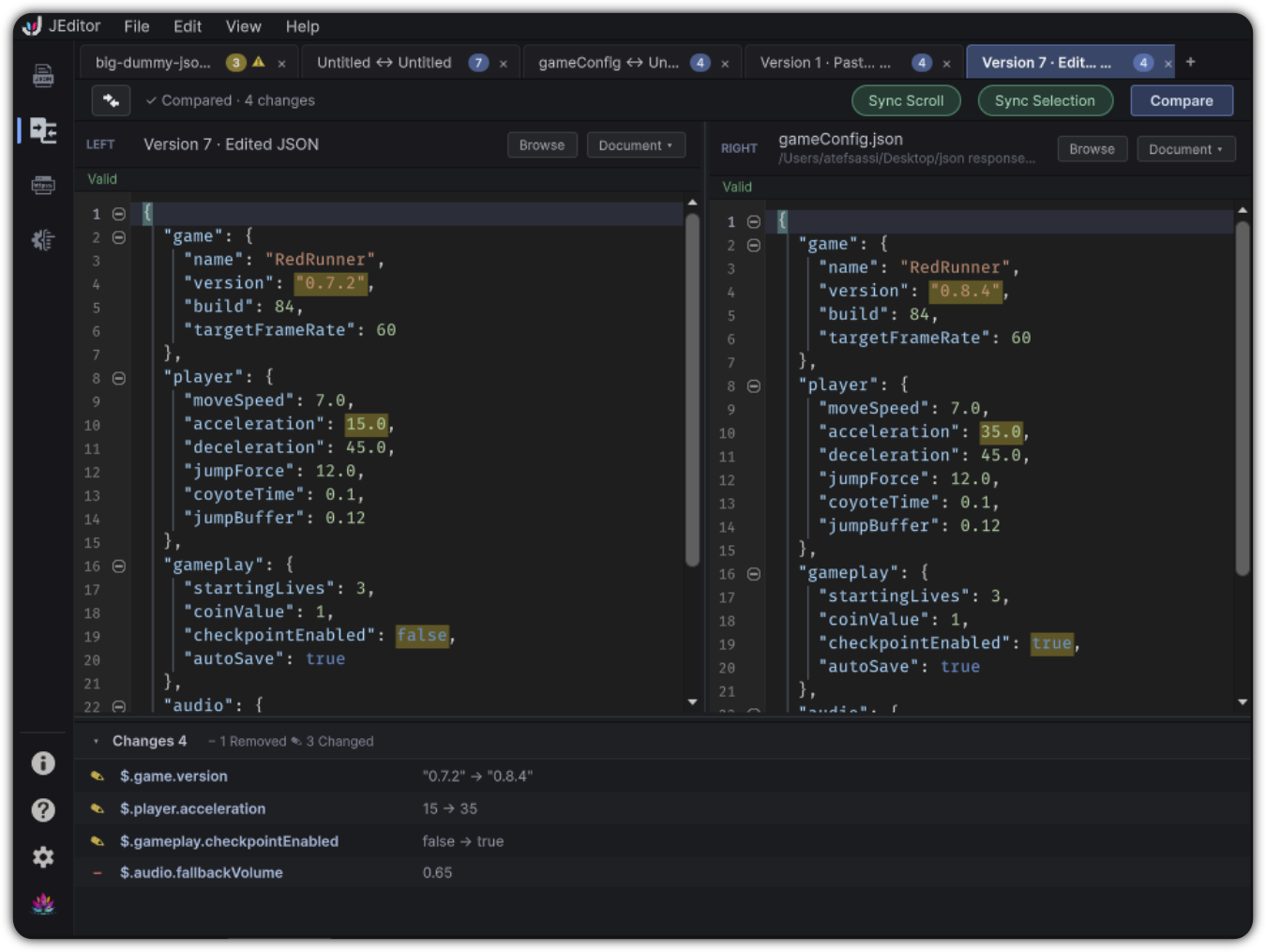
Compare is JEditor's semantic JSON diff workspace. It compares structure and values, not only text lines, so reordered object properties and meaningful tree changes are easier to review.
Line-based diffs struggle with JSON. Pretty-print changes, key reordering, and nested moves create noise. Compare builds a structural diff so you can review what actually changed in game data: added fields, removed entries, changed values, and type changes.
Open Compare
Left rail → Compare, or JEditor → Go to Compare
Compare uses its own comparison tabs. Create sessions with File → New Comparison.
Anatomy
[ Swap ]  status  ……  [ Sync Scroll ] [ Sync Selection ] [ Compare ]

 LEFT pane                      RIGHT pane
 source controls                source controls
 JSON editor                    JSON editor

 ▾ Changes
   path + summary list
Sources per side
Each side can load JSON from:
| Source | How |
|---|---|
| Freeform text | Type or paste directly |
| File | Browse |
| Open document | Document ▾ menu of Documents tabs |
Side chrome shows validity (Valid / Errors N).
Toolbar
| Control | Role |
|---|---|
| Swap | Swaps left and right content (clears the current diff until you compare again) |
| Status | Ready / identical / change count / stale hints |
| Sync Scroll | Mirrors vertical scrolling (on by default) |
| Sync Selection | Mirrors current-line highlight across panes (on by default) |
| Compare | Runs the semantic diff |
Changes panel
After a successful compare, Changes lists entries with path and summary. Glyphs indicate added / removed / changed style updates. Click a row to reveal the related ranges.
Change kinds include:
- Added
- Removed
- Changed
- TypeChanged
Key order is ignored, so the review stays on the values that actually changed.
Workflow
- Create or select a comparison tab
- Load left and right sources
- Fix JSON validity on both sides if needed
- Click Compare
- Review inline highlights and the Changes list
- Use Sync Scroll / Sync Selection while navigating
From Version Control
In Documents → Version Control, Compare on a historical entry can open Compare with left = historical JSON and right = current document, then auto-run the comparison.
Limits to know
- Manual Compare expects valid JSON on both sides (toasts explain failures)
- Diff entry count is capped for very large change sets
- Closing a dirty comparison tab prompts before discard
- Session layout and sync preferences persist with the Compare workspace
Example
Left (shipped):
Right (proposed):
Compare reports a changed hp value and an added armor property, even if formatting or key order differs.