Output & Errors
The bottom dock in Documents separates two concerns that are easy to mix up elsewhere: syntax diagnostics and activity history.
Errors tell you what is broken in the JSON. Output tells you what you did: formats, copies, searches, restores, and other document actions. Keeping them separate makes the workspace calmer and the audit trail more useful.
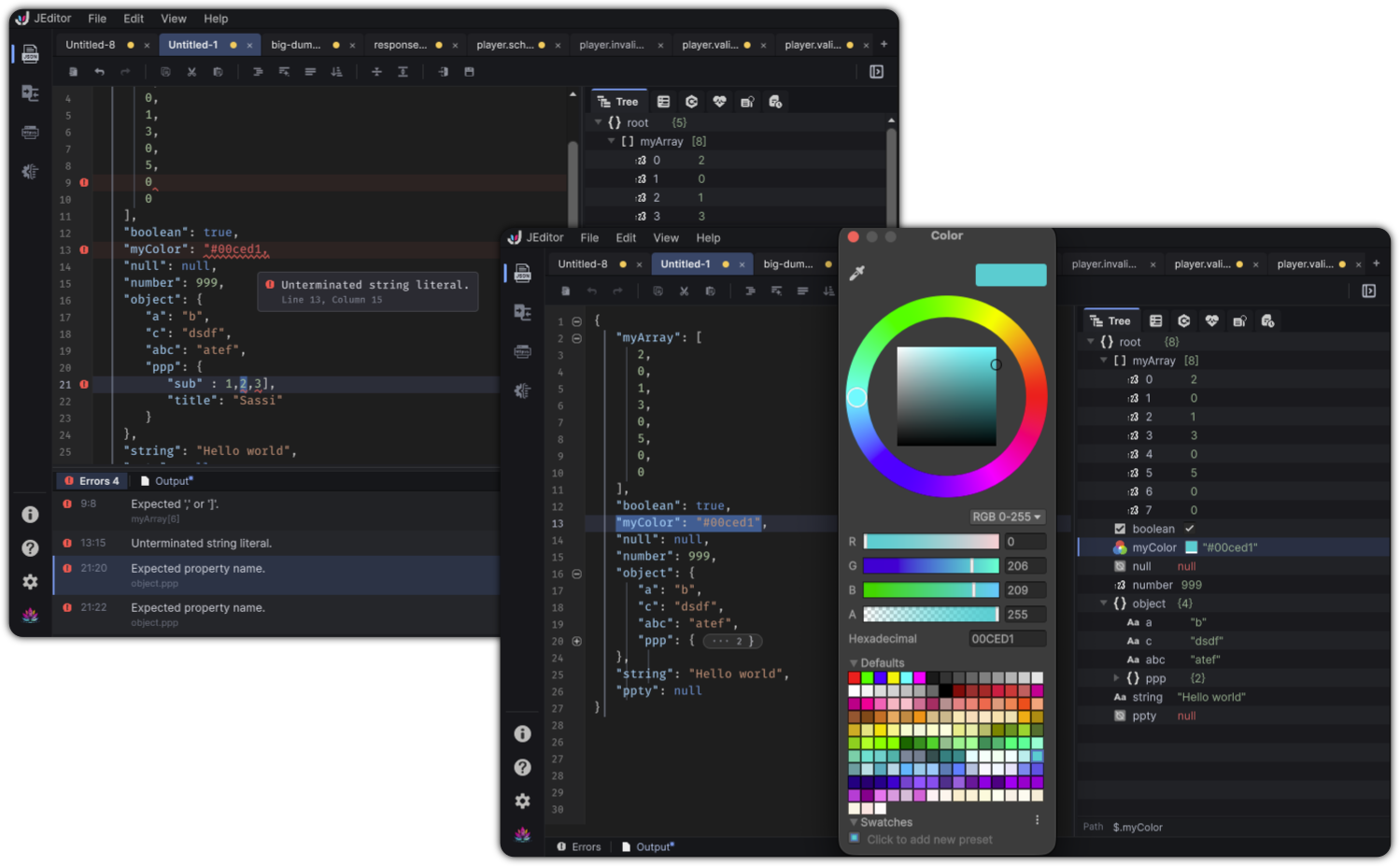
Errors
Bottom dock → Errors
| State | What you see |
|---|---|
| Clean | No JSON syntax errors. |
| Issues present | Tab badge such as Errors 3, plus a list of diagnostics |
Each row typically includes location (line:column), message, and optional path context. Click a row to reveal and focus the problem in the editor.
The Errors tab icon shifts between active and inactive presentations based on whether diagnostics exist.
Health's View Errors action can also focus this dock when a document is invalid.
Output
Bottom dock → Output
| State | What you see |
|---|---|
| Empty | No output for this document. |
| Active | Timestamped rows with source badges and kind styling |
Sources you may see
Output rows can be attributed to sources such as:
- Editor
- Search
- Query
- Live C#
- Tree
- Inspector
- Version Control
- File
Row kinds include success, warning, info, and code-oriented styling depending on the event.
Toolbar
| Control | Role |
|---|---|
| Auto-scroll | Follow the latest rows; scrolling up pauses follow |
| Copy all | Clipboard export of the log |
| Clear | Clears the current document's output |
An unread mark can appear on Output when new activity arrives while the dock is collapsed or another tab is focused.
Default auto-scroll behavior is also controlled in Preferences → Editor.
Practical habit
- Keep Errors visible while editing unfamiliar JSON
- Use Output when you need to confirm what tooling just did
- Collapse the bottom dock when you want maximum editor height; the unread cue will nudge you back if needed